Lab: Environment Setup on Your Own Computer
This document will guide you through the various steps needed to set up the programming environment for CSE 2221/2231 on your own computer. With only minor modifications these steps will work equally well on all popular operating systems (Linux, Mac OS X, and Microsoft Windows). The screen shots included here are all taken on a Windows platform, but they should be very similar to what you'll see on different systems.
This document has been designed with a specific sequence of steps for you to follow. Hover over the thumbnails to see the full-size screen shots. You can also click on a thumbnail to open the full-size screen shot in a separate window/tab. If you have any questions or run into any trouble, ask an instructor for help and try to provide as much detail about what you have done, what you have observed, and what the problem is.
It is very important that you follow the instructions carefully and pay attention to the details. Make sure you do not skip any steps and that you type all inputs exactly as they are provided in this guide (including spelling and capitalization).
Downloading CSE 2221/2231-Specific Files
The following files are customized and specific to CSE 2221/2231.
- Download OsuCseWsTemplate.zip,
expand (uncompress, unzip) it in an easily accessible location you
can remember (e.g., under Windows you could expand it in the
My Documentsfolder). This ZIP archive contains a folder namedworkspaceconfigured for SW I & II. You will store all your Eclipse projects in this folder. - Download components.jar, place it in an
easily accessible location you can remember (e.g., under Windows you
could put the
components.jarfile in theMy Documentsfolder), not inside theworkspacefolder you extracted from the ZIP archive in the previous step.
You will also need to download and install a recent distribution of the Eclipse IDE (Integrated Development Environment). Note: An installation of a recent Java Development Kit (JDK) is no longer necessary.
If you already have an installation of Eclipse and the needed plugins from a recent offering of CSE 2221/2231, you can skip directly to Final Touches. But first make sure to read the important note here.
Downloading and Installing Eclipse
You need to download a recent release of Eclipse. If you already have Eclipse installed from a previous class that was not CSE 2221/2231 (e.g., from CSE 1223), you need to reinstall Eclipse following these steps. The version you have is probably not the correct one and it is missing the needed plugins.
In your browser, go to Eclipse Downloads. Do not use the Eclipse Installer. Instead follow these steps to download and install Eclipse.
Find the Eclipse IDE for Java Developers package (make sure you do not pick the wrong package) and click on the appropriate download link for your operating system (Windows, Mac, or Linux) and architecture (32-bit or 64-bit). There are many other packages but this is the one that you'll need in this class.
Once the download has completed, locate the downloaded file. This file will be a compressed (i.e., a ".zip", or ".tar.gz") file. Uncompress this file into the directory of your choice. It doesn't really matter where you put the Eclipse installation folder as long as you know how to retrieve it. You can optionally create a shortcut of the Eclipse IDE executable file ("eclipse.exe" on Windows, or "eclipse" on Linux, or "Eclipse" on Mac OS X) found in the directory that is created. To start Eclipse you just double-click on the executable file or the shortcut, but...
IMPORTANT! Do not start Eclipse yet and read this section carefully before proceeding with the rest of the set-up. When you start Eclipse for the first time, it is going to ask you to specify a folder for your "workspace". That's the folder where Eclipse will store all your work (e.g., your Java programs). You must enter the location on your disk of the
workspacefolder you downloaded earlier (OsuCseWsTemplate.zip) . If you don't or if you provide the wrong location, Eclipse will silently create a new empty workspace. If that happens, you have to switch to the correct workspace. There is no way of "fixing" a default empty workspace to behave like the one we use in the class.It is easy to check whether you have opened the correct workspace. Eclipse window should look like this
. Specifically, if you do not see ProjectTemplate in the Package Explorer tab on the left of the window (or you see additional projects), you did not open the correct workspace. If the workspace does not look right, you can switch to the correct one by selecting, in Eclipse's menu, File > Switch Workspace > Other... and then navigating to the correct workspace folder on your disk.
One last important note before we proceed. If you already have a workspace from a previous class (any class, including CSE 1223 and CSE 2221/2231), you must start with a new clean workspace from the template. Do not reuse workspaces across classes.
Downloading and Installing Plugins
The functionality of the Eclipse IDE can be expanded by adding extensions known as plugins. You'll need to install four such extensions: Checkstyle, SpotBugs, Subclipse, and Eclipse Web Developer Tools.
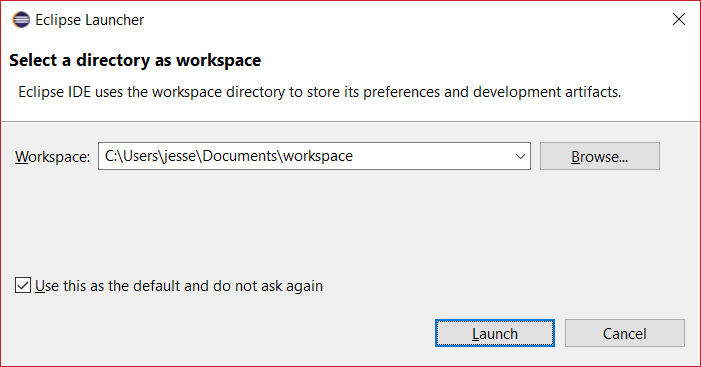
To install new plugins you need to start Eclipse. The first thing
Eclipse needs to know is where you want to store your work (e.g., your
Java programs). Eclipse calls this directory a workspace. Enter
the location on your disk of the workspace folder you downloaded
earlier. You may click on the checkbox Use this as the default
and do not ask again, if you want Eclipse to open this workspace every
time you run it. Then click OK.
Once Eclipse is finished loading, it will open the window where you will usually find yourself from now on when you start Eclipse. A reminder, again, that if you do not see ProjectTemplate in the Package Explorer tab on the left of the window, you did not open the correct workspace.
Let's install the Checkstyle, SpotBugs, Subclipse, and Eclipse Web Developer Tools plugins.
-
Select Install New Software... from the Help menu at the top of the window.

-
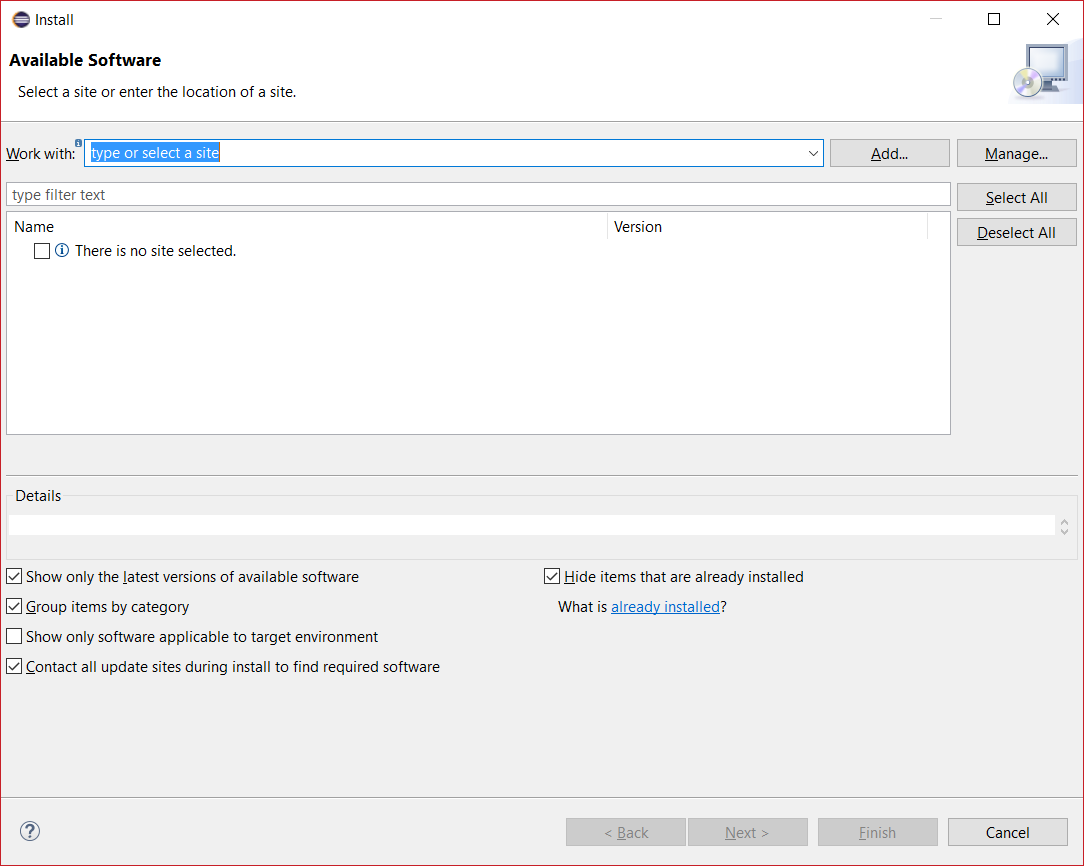
Now you need to create a new software site to tell Eclipse where to find the first plugin. Click the Add... button at the top-right of the window.
-
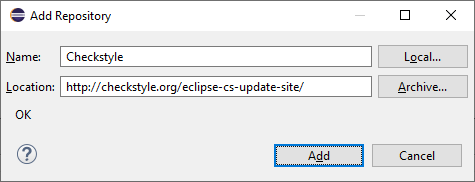
In the dialog, for the Name enter
Checkstyleand for the Location enterhttps://checkstyle.org/eclipse-cs-update-site/. Click Add.
-
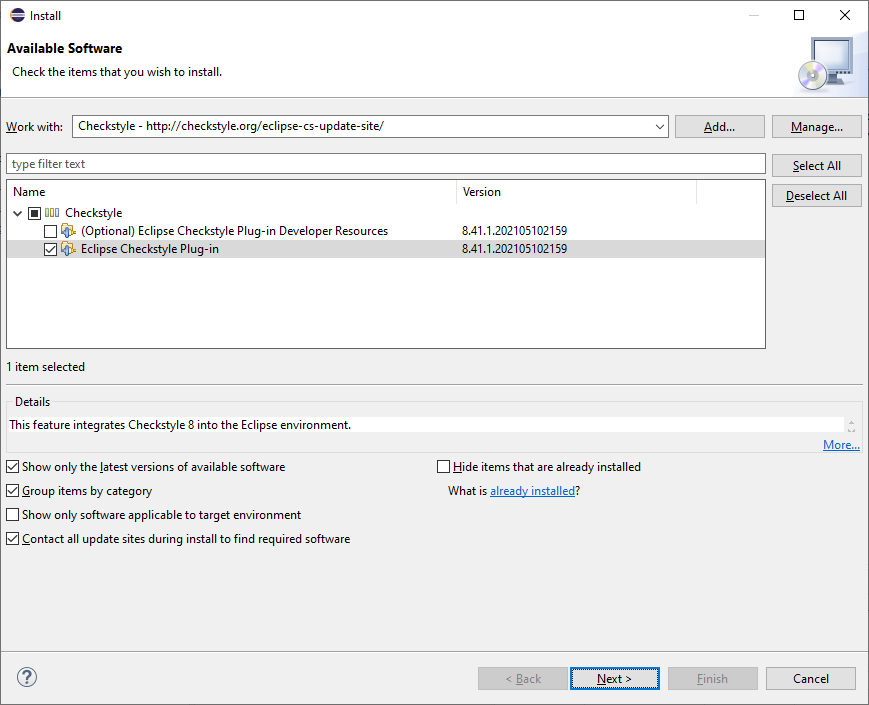
Once the installer is done looking up the new site, it will display a list of the plugins available. Select only Eclipse Checkstyle Plug-in from the Checkstyle entry. Click Next.
-
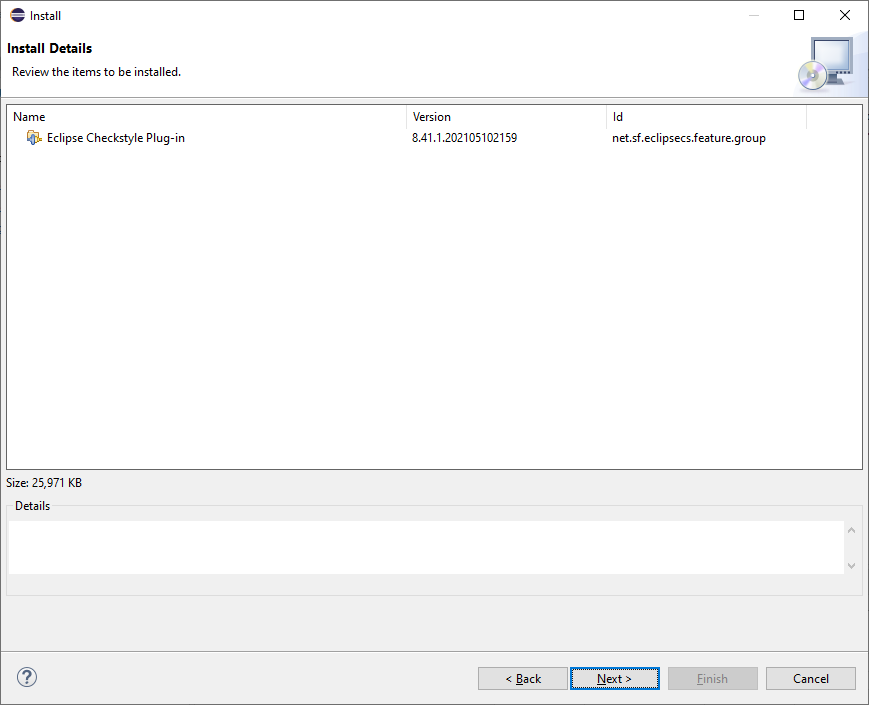
Eclipse allows you to review your selection and to confirm you are installing the Eclipse Checkstyle Plug-in. Click Next again.
-
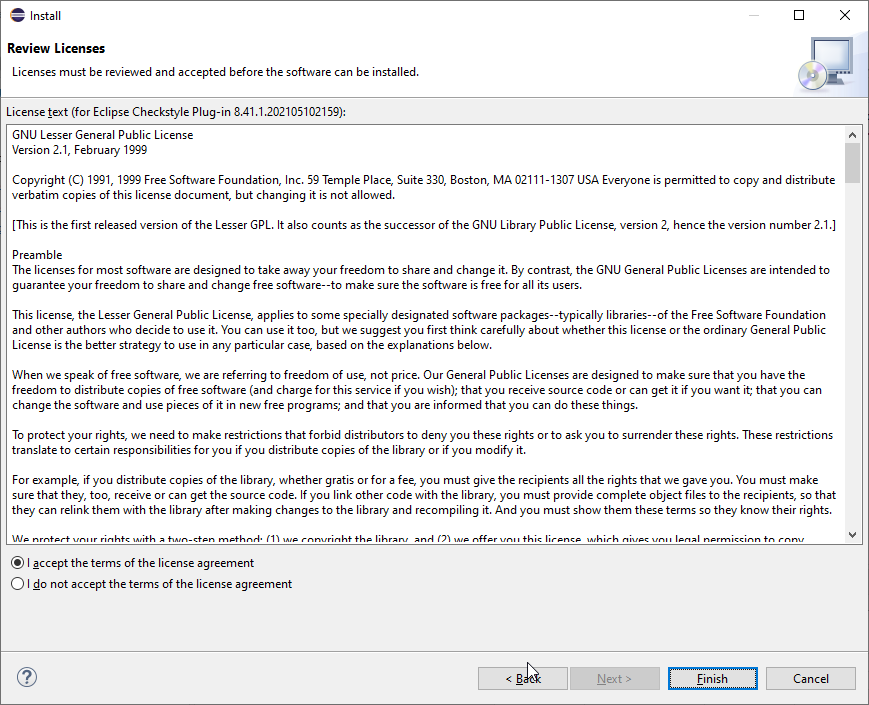
In the next window, check the I accept the terms of the license agreement radio button and click Finish.
-
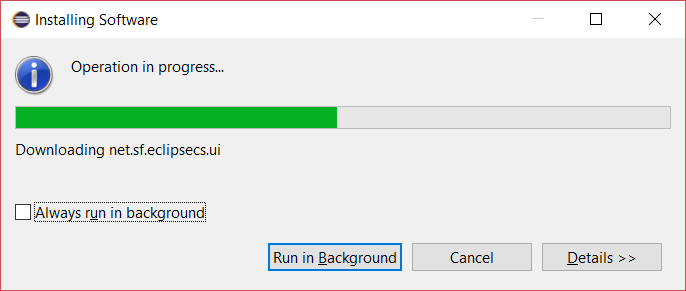
Eclipse displays its progress with the plugin installation.
-
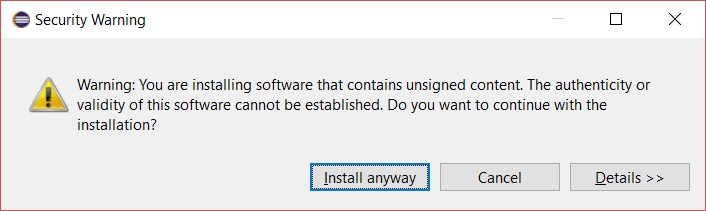
Next you should get a security warning. If you want, you can look at the details, but this warning is expected and you should click Install anyway.
-
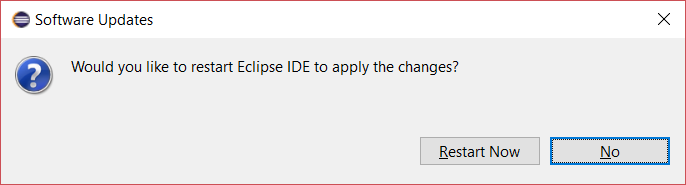
Finally the installation of the Checkstyle plugin is complete and Eclipse offers to restart itself. Normally you would want to say yes, but in this case, since you need to install a couple other plugins, click No.

-
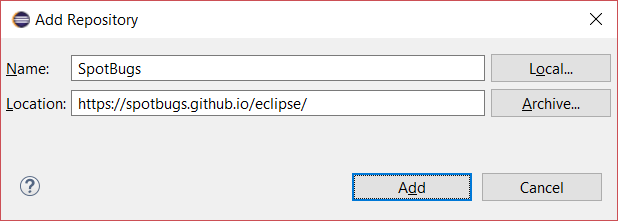
Let's move on and install the SpotBugs plugin. Repeat steps 1 and 2 above (select Install New Software... from the Help menu, then click the Add... button). In the Add Repository dialog, enter
SpotBugsfor the Name andhttps://spotbugs.github.io/eclipse/for the Location. Click Add.
-
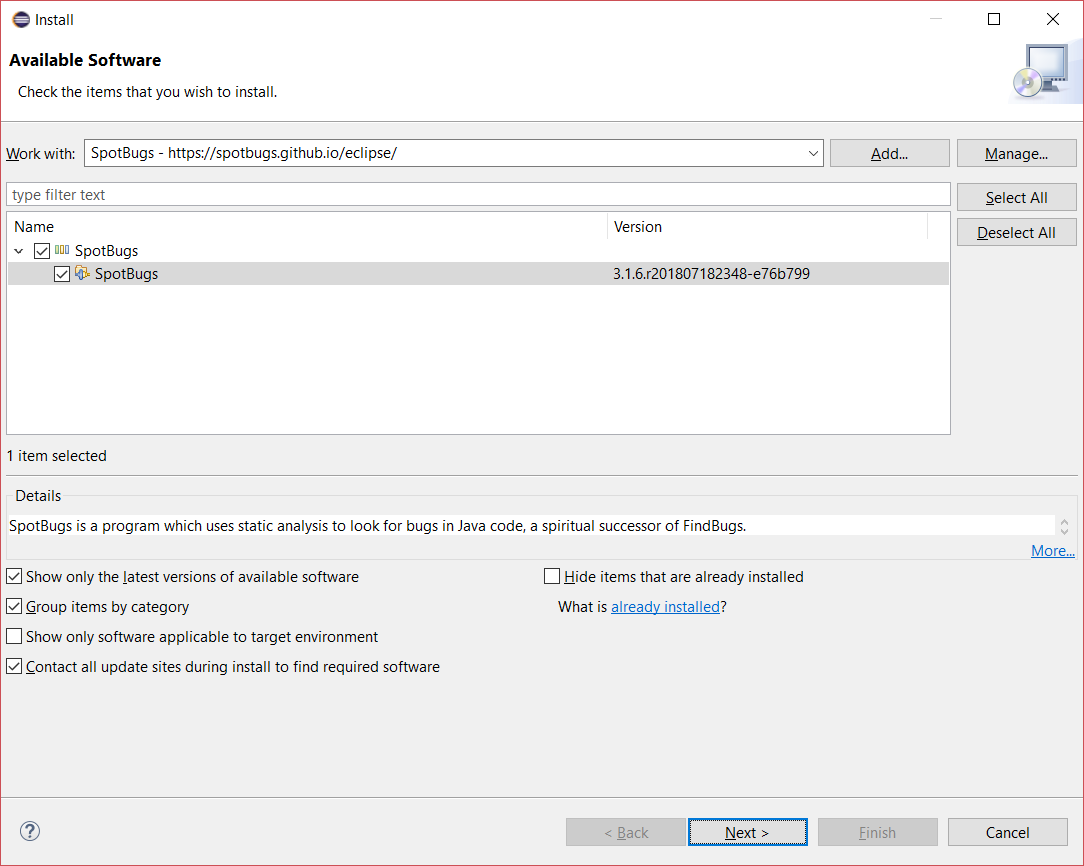
Select the only plugin available, SpotBugs, from the SpotBugs entry. Click Next.
-
Repeat steps 5-9 above: confirm you are installing the SpotBugs plugin, accept the license agreement, get past the security warning, and, once more, click No when the installation of the SpotBugs plugin is complete and Eclipse offers to restart itself again.
-
Next we'll install the Subclipse plugin. Repeat steps 1 and 2 above (select Install New Software... from the Help menu, then click the Add... button). In the Add Repository dialog, enter
Subclipsefor the Name andhttps://subclipse.github.io/updates/for the Location. Click Add.
-
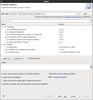
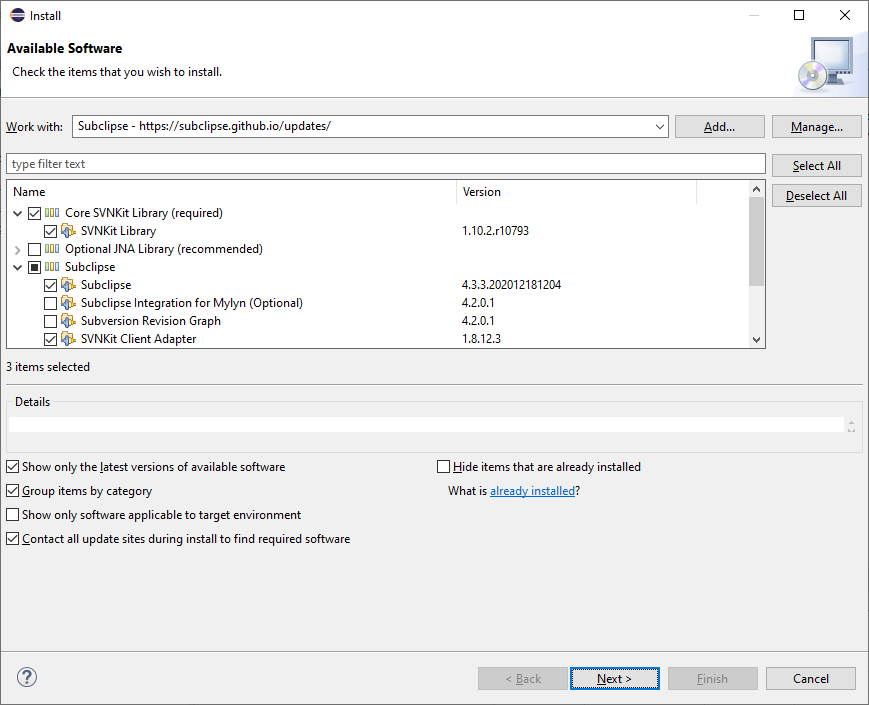
You should see several folders, but we are only interested in two: Core SVNKit Library (required) and Subclipse. To avoid issues later, make sure you select only the following features: in the Core SVNKit Library (required) folder select SVNKit Library (it should be the only entry); in the Subclipse folder select only the two entries Subclipse and SVNKit Client Adapter. Before you click Next double-check in the screenshot below that you have selected the correct entries and only those entries.
-
Repeat steps 5-9 above: confirm you are installing the Subclipse plugin, accept the license agreement, get past the security warning, and, once more, click No when the installation of the Subclipse plugin is complete and Eclipse offers to restart itself again.
-
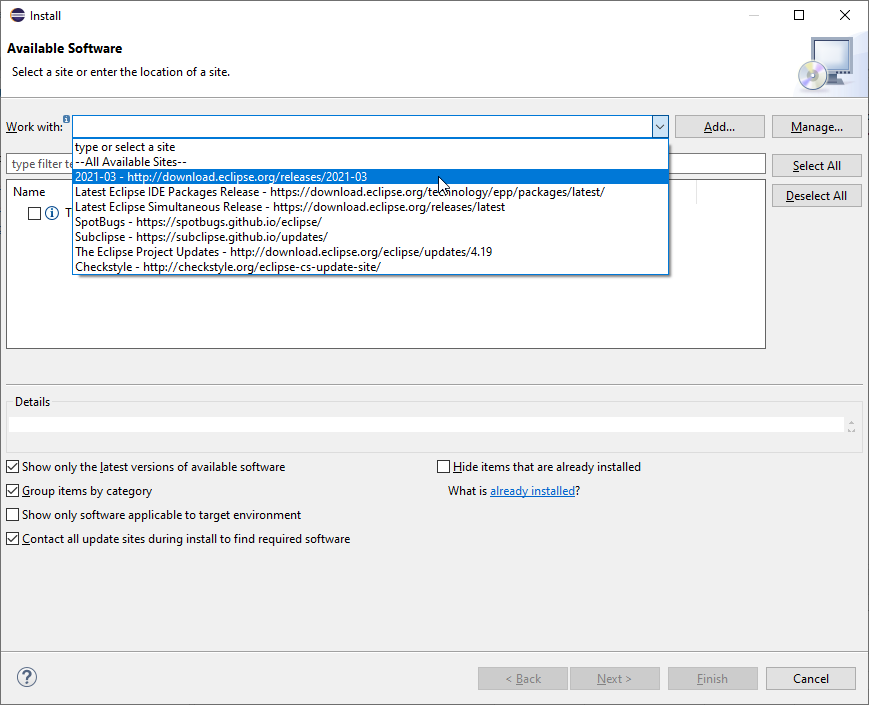
Finally you are ready to install the last plugin, Eclipse Web Developer Tools. Again select Install New Software... from the Help menu. This time, however, there is no need to add a new site. Click on the drop-down menu to the left of the Add... button and select the
20??-?? - https://download.eclipse.org/releases/20??-??site. (This entry's name depends on the specific release of Eclipse you are running. The '??' are just placeholders that should be replaced by the correct numbers of your release.)
-
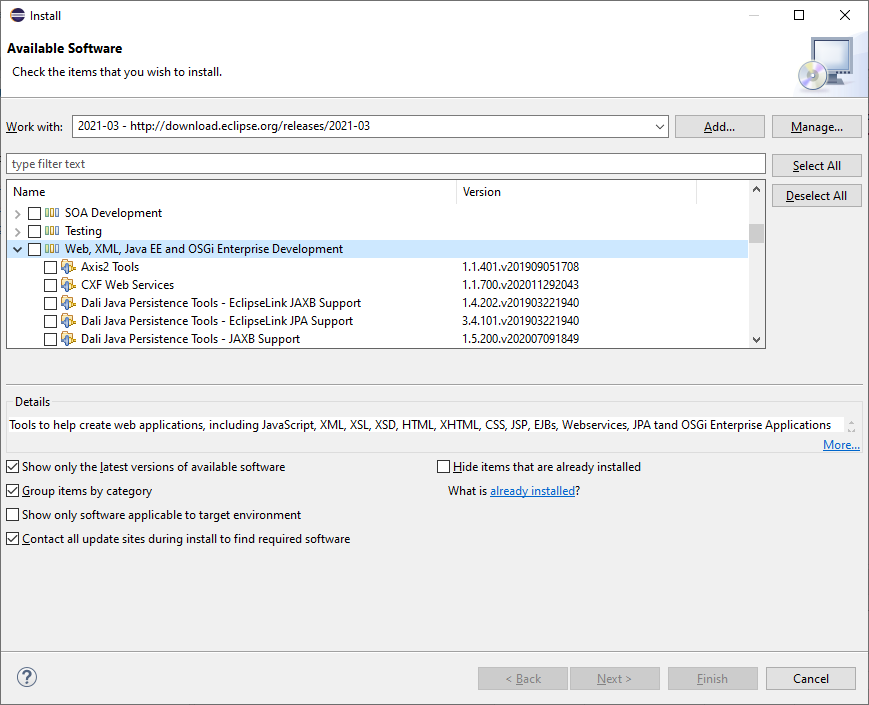
Go to the bottom of the list of available plugins and expand the last entry Web, XML, Java EE and OSGi Enterprise Development.
-
Scroll down until you find the Eclipse Web Developer Tools plugin and select it. Make sure you don't accidentally select some other entry with a similar name. Click Next.

-
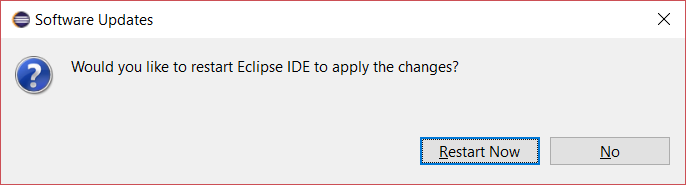
Repeat steps 5 and 6 above: confirm you are installing the Eclipse Web Developer Tools plugin and accept the license agreement. Once the installation of the plugin is complete Eclipse offers to restart itself yet again. Now click Restart Now.

This completes the installation of Eclipse and the necessary plugins.
Final Touches
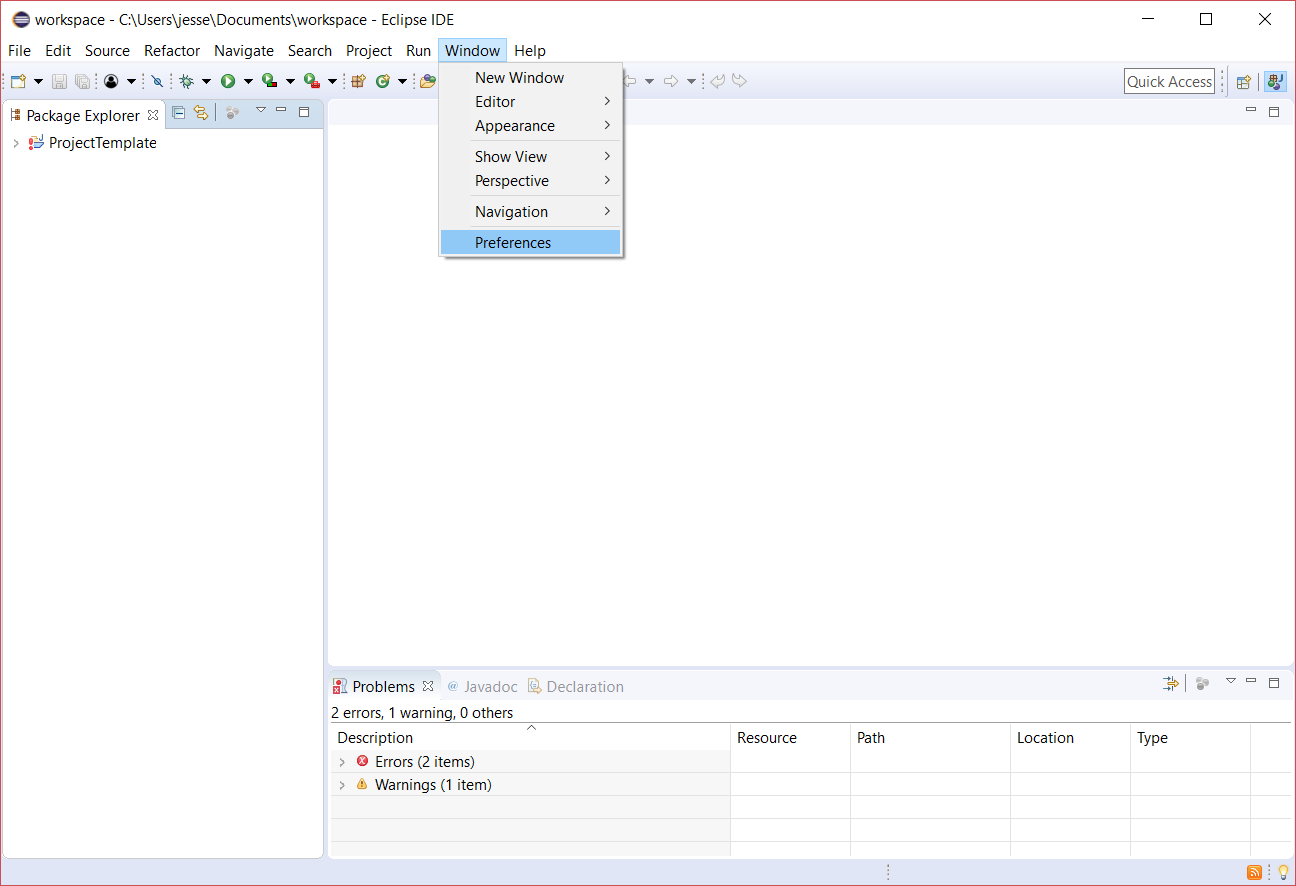
There are still a few things that need to be taken care of to complete the setup. First we need to fix a few Eclipse settings. Access the preferences window by selecting Preferences from the Window menu (on Mac OS X, use Settings... under the Eclipse menu).
-
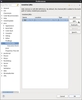
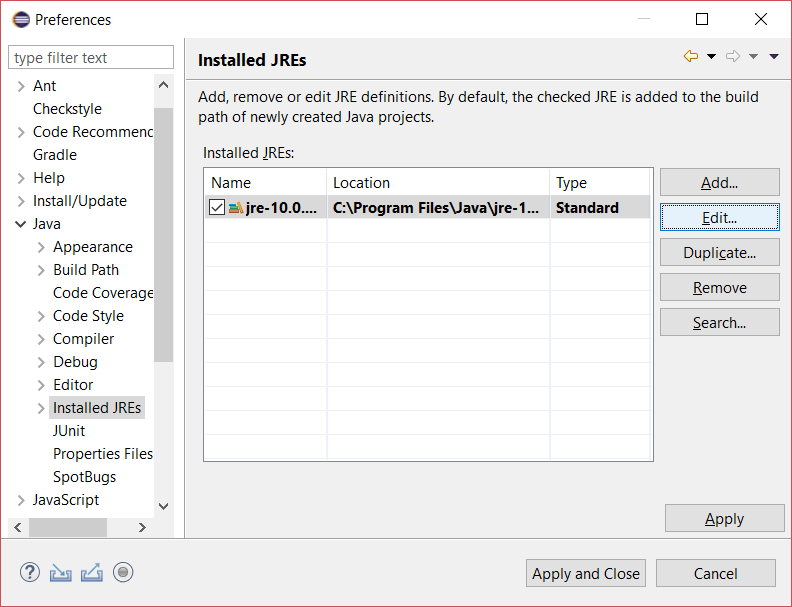
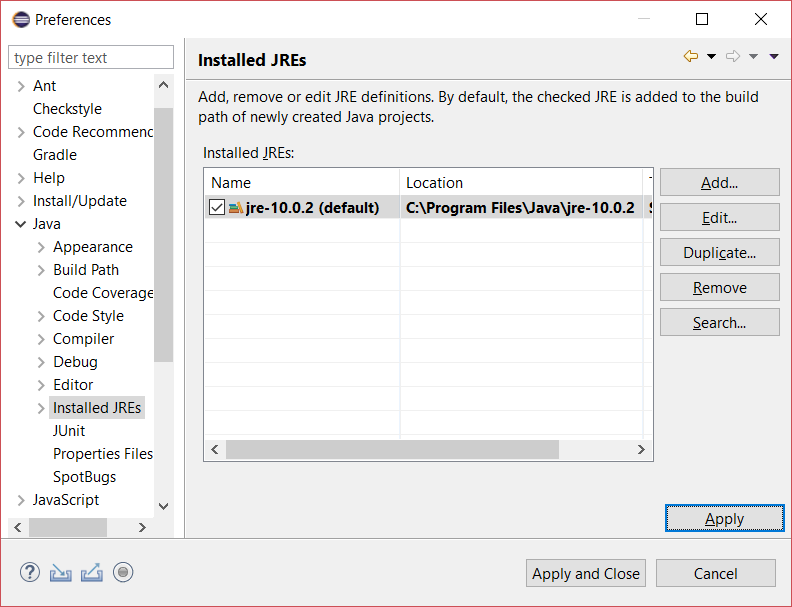
Next select Java > Installed JREs.
-
Click on the default selection (the one with the checkmark), and click Edit...
-
Then enter
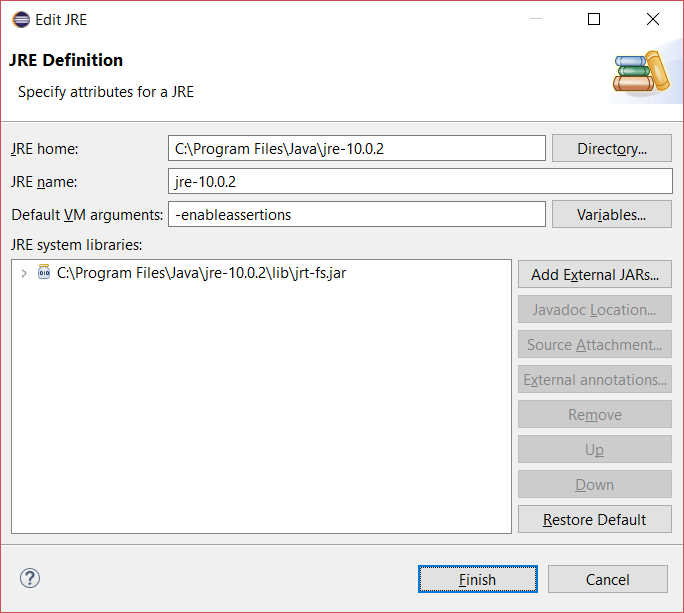
-enableassertions(or simply-ea) in the box labeled Default VM Arguments and click Finish.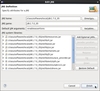
-
Then click Apply (not Apply and Close).
-
-
Expand and select Java > Build Path > Classpath Variables.
-
Select the
OSU_CSE_LIBRARYentry and click on Edit...

-
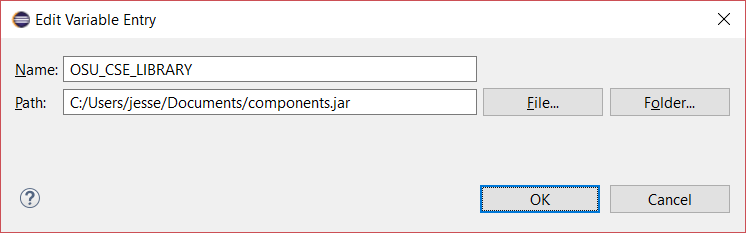
Set the Path to the location of the
components.jarfile, either by simply typing it in or by clicking on File... and navigating to the appropriate location of the file on your file system. Click OK
-
Click Apply and Close and when asked whether you want to do a full build now, click Yes.
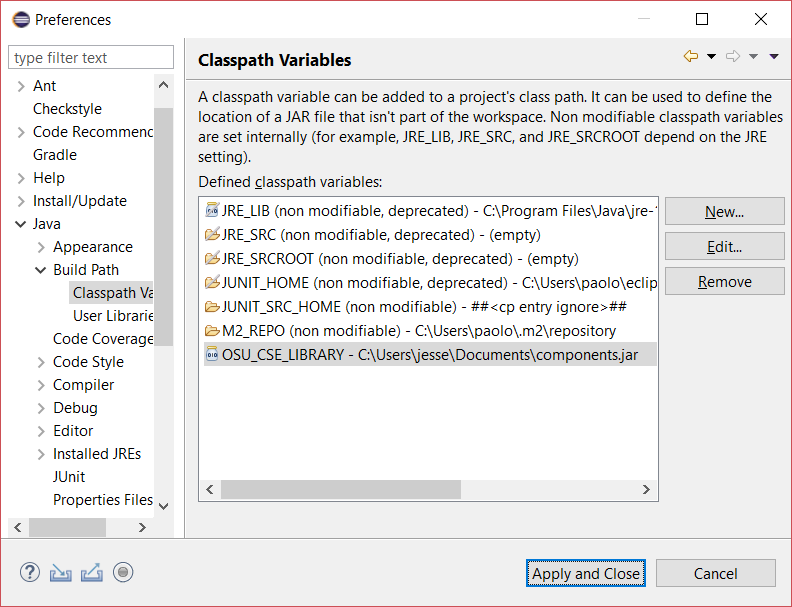
-
If you followed all the steps above correctly, everything should now be
set up properly and there should be no errors or warnings in the given
ProjectTemplate . (Actually there could be one warning that the
compiler compliance specified is 1.7 but a different JRE is used. That
is okay.)
Creating a New Project from a Project Template
Work inside a workspace is organized in projects. A project is essentially a folder (usually inside the workspace folder) where you can store your code, documentation, tests, and all kinds of resources related to a given task.
The workspace already contains a project named ProjectTemplate as you
can see in the Package Explorer view. You can expand a few entries
to see what kind of structure this project has.
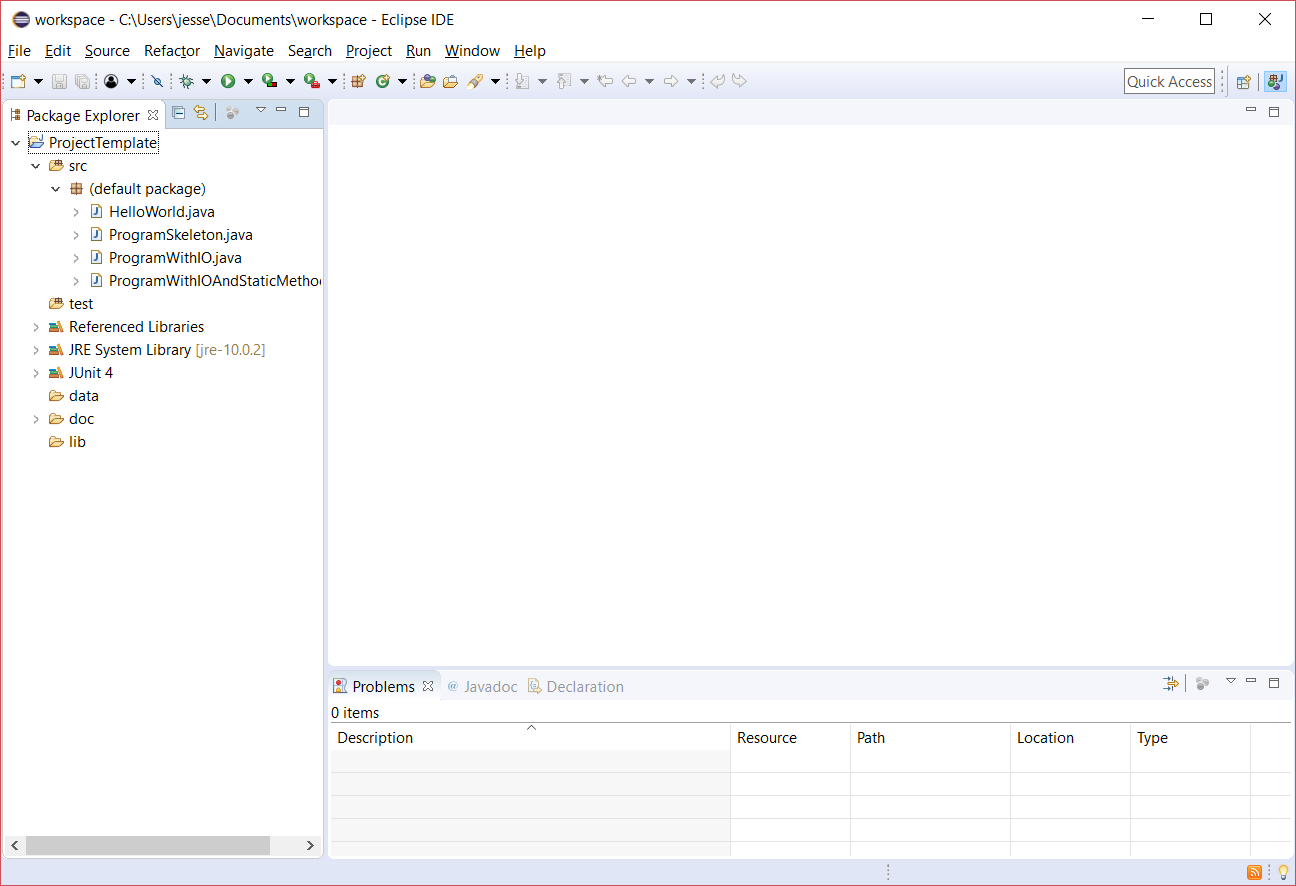
Although you can create projects directly in Eclipse, to avoid having to spend time customizing each project, you will create new projects by simply copying and pasting the template in Eclipse any time you need a new project (as explained below).
Important: You should never modify this template project! If you do accidentally modify it, or think you might have done so, you should see your instructor who will help restore the original project structure.
Whenever you need to create a new project, e.g., for a lab or closed lab
assignment, you copy and paste ProjectTemplate by following these
simple steps:
-
In the Package Explorer view, click the right mouse button with the mouse pointer on the
ProjectTemplateproject entry and select Copy from the pop-up menu.
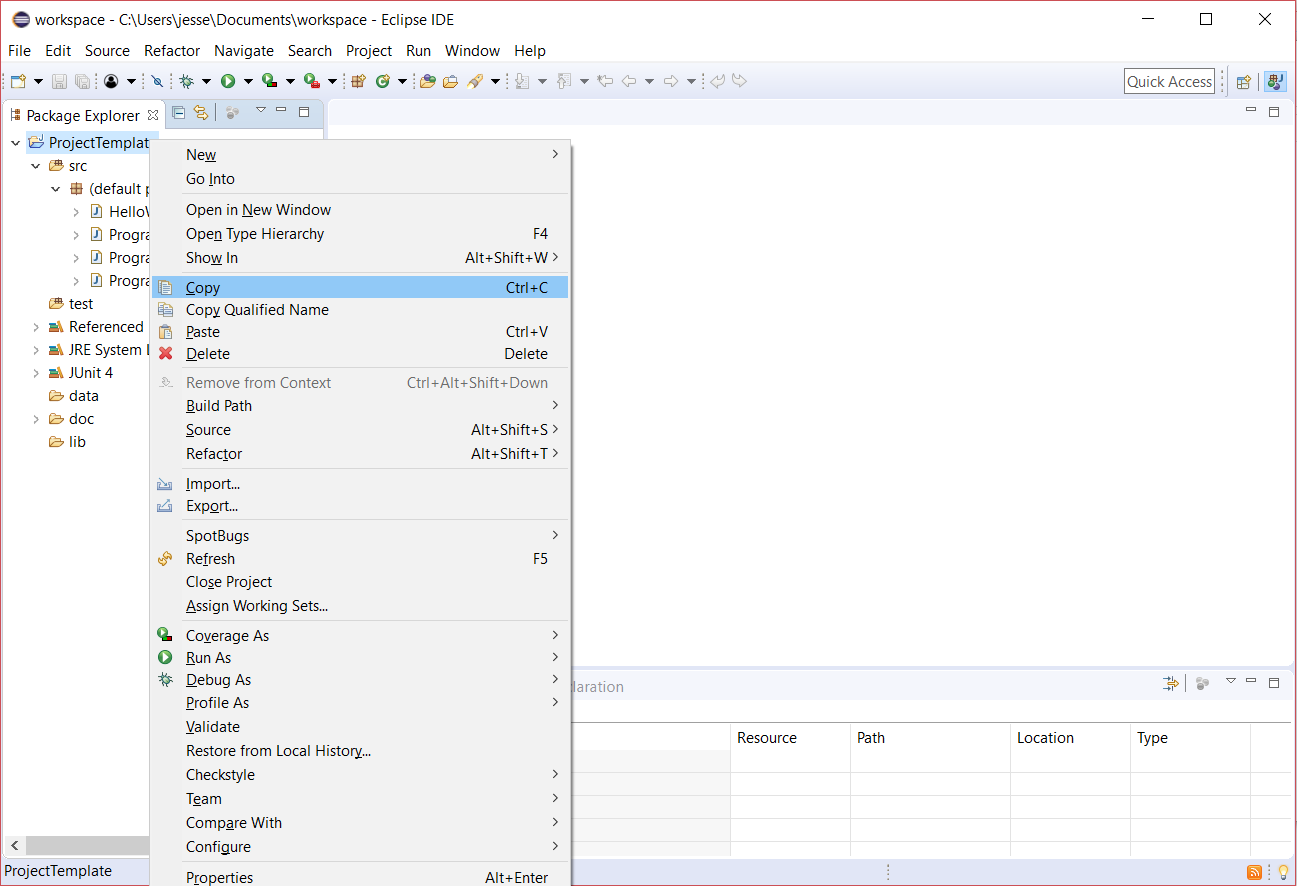
-
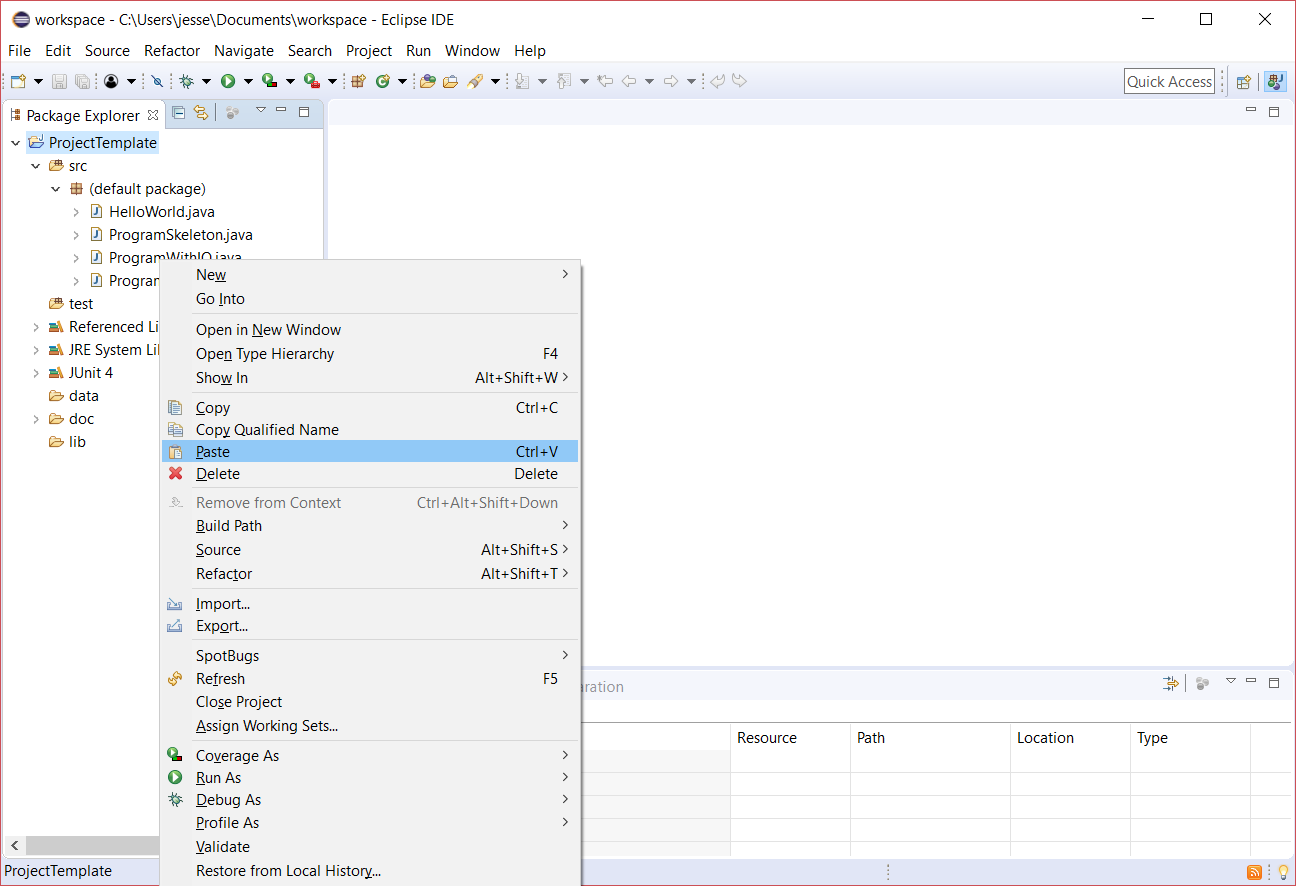
Click the right mouse button anywhere in the Package Explorer view and select Paste from the pop-up menu.
-
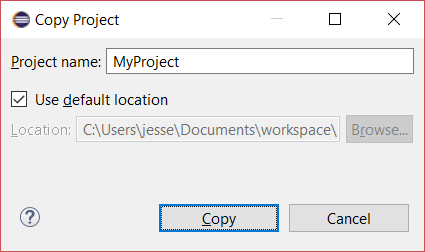
Enter the name for your new project,
MyProject, and click OK.
-
Your new project is now displayed in the Package Explorer ready to be used as the starting point for your assignment.

This completes this Eclipse setup guide.