Importing ProjectTemplate
Follow these steps to import the ProjectTemplate project (or any other
project) into your workspace from either a .zip archive or a directory
on your hard disk.
First download the project template, ProjectTemplate.zip, to your
computer. Click on this download link and
save the file somewhere on your hard drive where you can easily find it.
Make sure you name it ProjectTemplate.zip and that you do not expand
this archive. (If your browser automatically expands downloaded zip
archives, that's OK too. Just pay attention to the special instructions
in the following few steps.) You may want to make a note of where you
saved it.
-
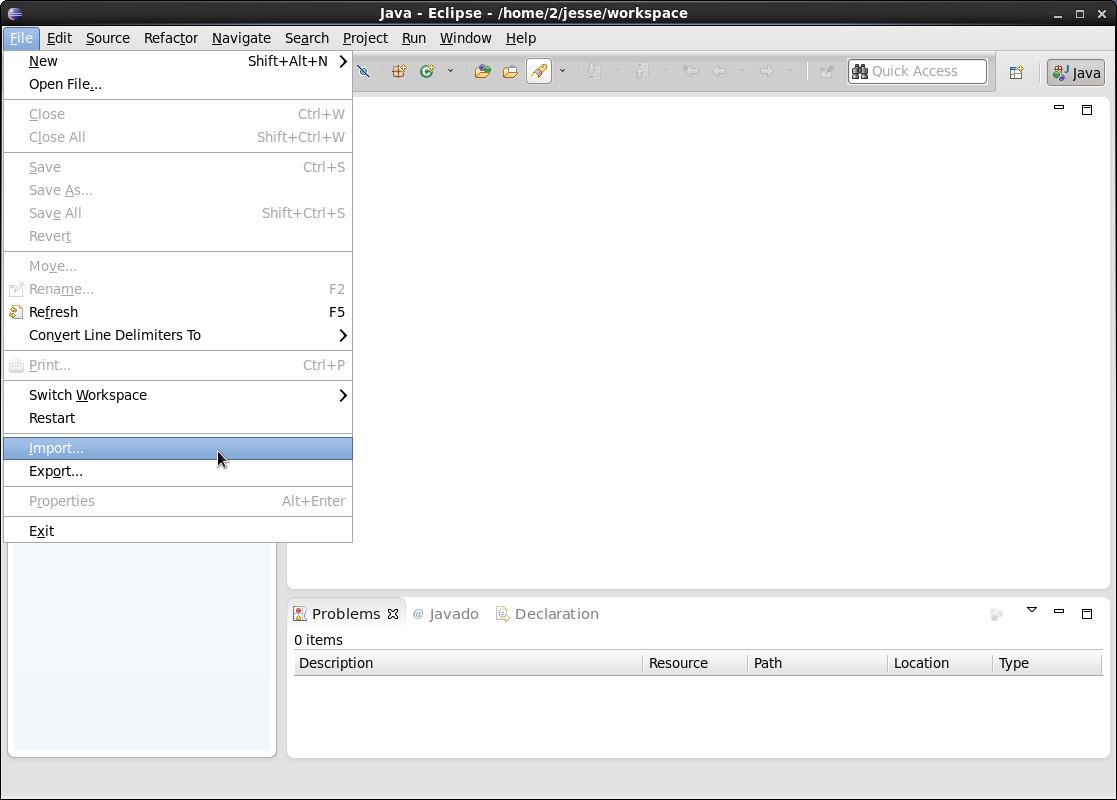
Start by importing into Eclipse the project template. From the File menu select Import...

-
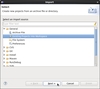
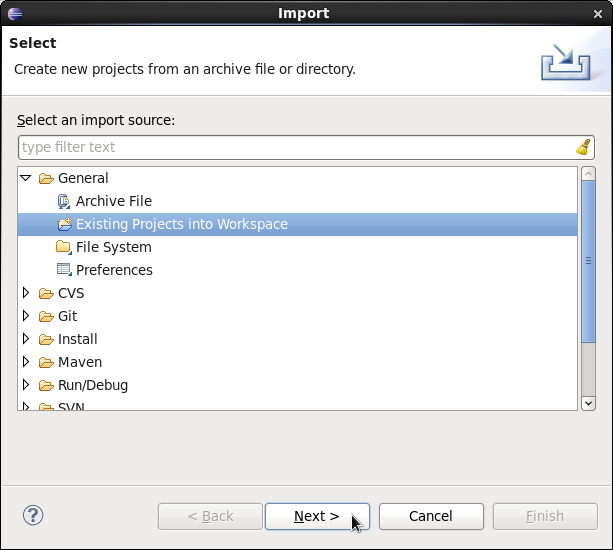
In the new window, expand General and select Existing Projects into Workspace. Click Next.
-
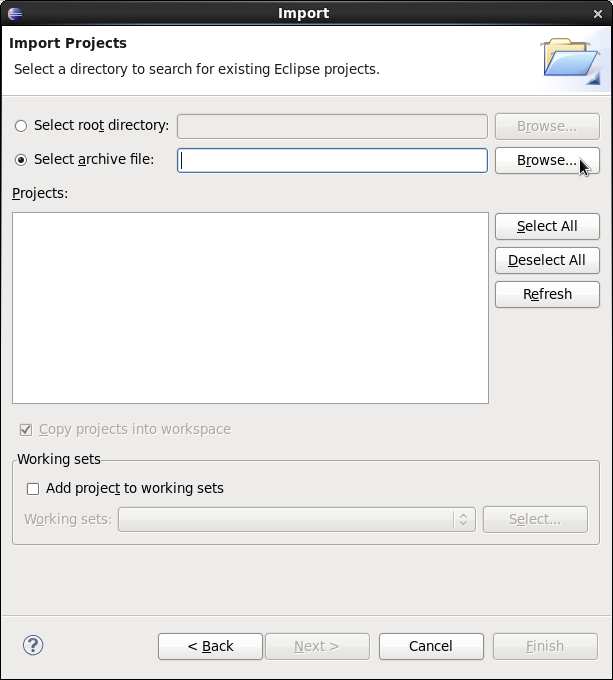
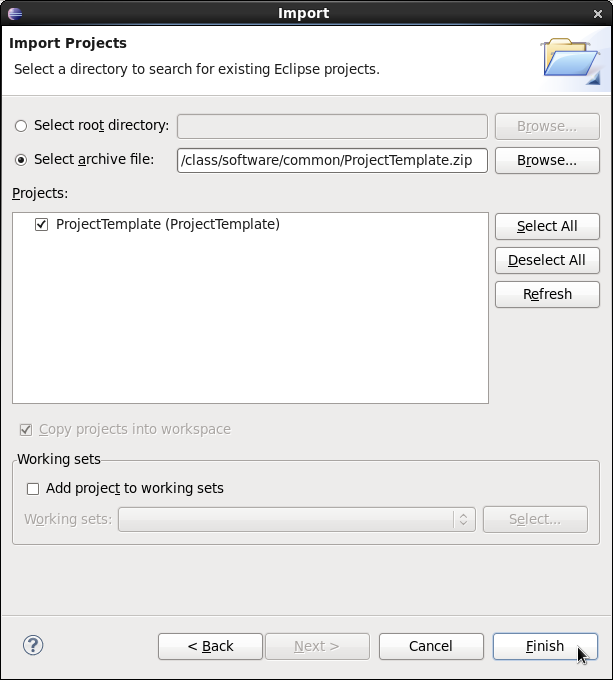
Click on the radio button next to Select archive file and then click the Browse... button. (If your browser expanded the
ProjectTemplate.ziparchive into aProjectTemplatedirectory, leave the Select root directory radio button selected instead.)
-
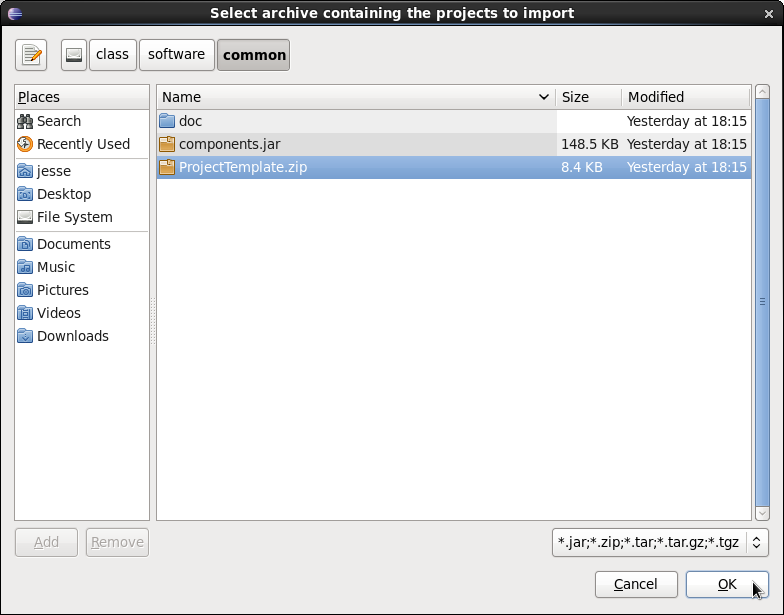
In the file selection window, find the
ProjectTemplate.zipfile and select it. (If your browser expanded theProjectTemplate.ziparchive into aProjectTemplatedirectory, find theProjectTemplatedirectory instead.) Click OK.
-
Click Finish.

-
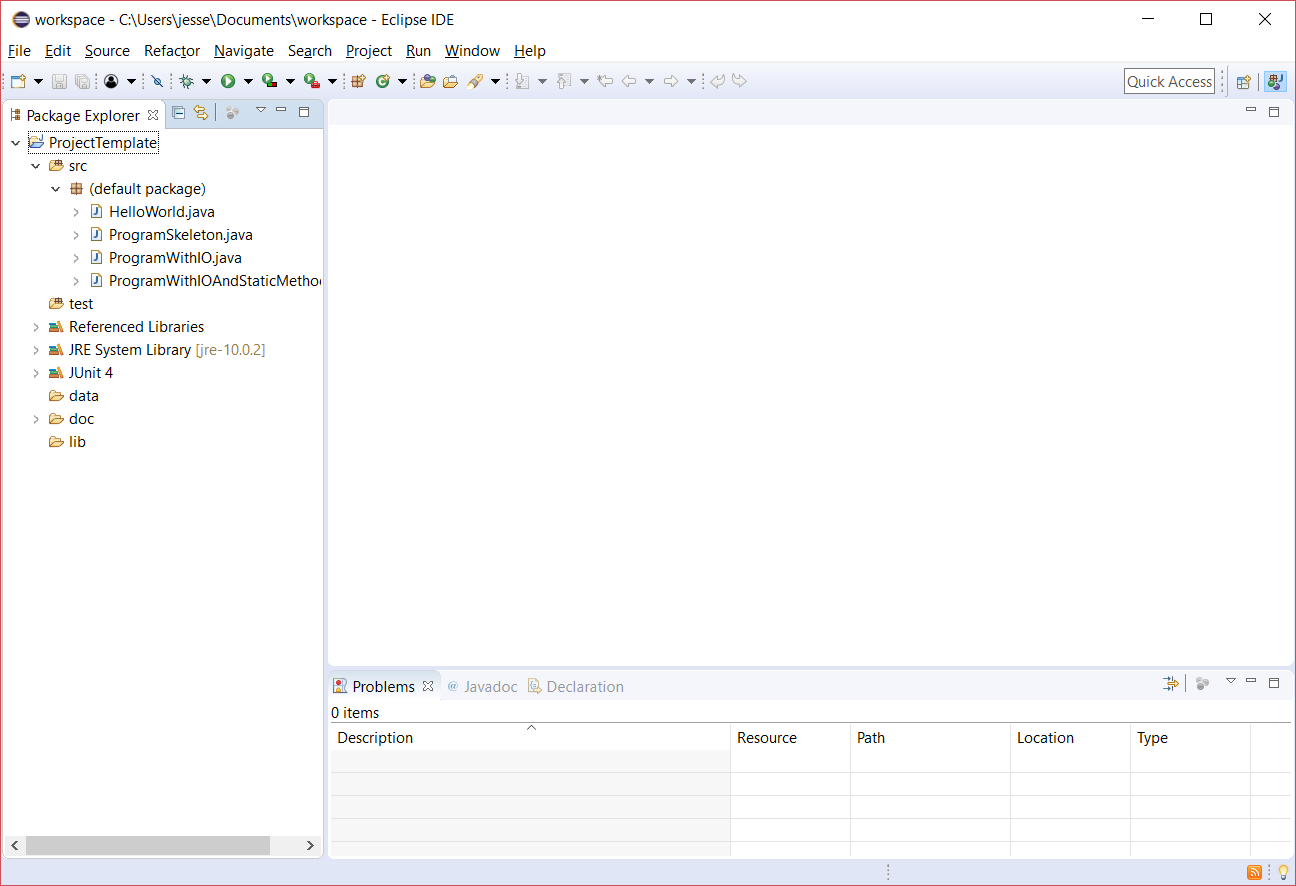
The project template is imported into Eclipse and appears as a new project called
ProjectTemplatein the Package Explorer view. You can expand a few entries to see what kind of structure the new project has.